How can we help?
Find a clear answer, follow the illustrated guide or contact DiBuCard support.
Open Card Studio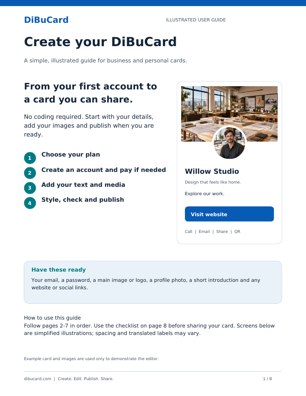
Create your card, step by step
An illustrated guide: choose a plan, pay, add photos and videos, swap images, style your card and publish.
English PDF · 8 pages · ready to printAnswers found: 14
How do I create my first card?
Choose a plan on Pricing and create an account. Sign in, open Studio and select New card. In Content, add your details and main card language; then add media, review the preview and Publish.
PDF page 3 · Read the guideHow do I sign in or recover access?
Use the email and password for your DiBuCard account on the Sign in page. Use Forgot password? if you need a reset. If the email does not arrive, check spam and contact dibucard@usa.com; never send your password.
PDF page 2 · Read the guideReset passwordHow do I pay for a plan?
Free needs no payment. For a paid plan, follow checkout during signup or open My subscription in Studio and select the plan. Complete Stripe Checkout, return to Studio and check the active plan and payment history before trying another payment.
PDF page 2 · Read the guideHow many cards, photos and videos can I add?
Free: 1 card, 1 gallery photo, no video. Deluxe: 3 cards, 3 photos and 2 video slots per card. Premium: 12 cards, 4 photos and 3 video slots per card. DiBu Net: 25 cards, 6 photos and 4 video slots per card. EB: 4 emergency cards, no gallery. Main and round photos are separate; a video logo uses one video slot.
PDF page 2 · Read the guideWhen does a plan change take effect?
Plan changes take effect on your renewal date. Before a downgrade, choose which cards to keep within the new limit using the account plan tools. Review the scheduled change in My subscription.
PDF page 8 · Read the guideWhat happens if renewal fails or I cancel?
After a failed renewal payment, your cards stay public and editable with the current plan for 30 days. Without payment, access and public cards end after that period. Voluntary cancellation stops future renewals and keeps access until the paid period ends; it does not add a 30-day grace period.
PDF page 8 · Read the guideWhere do I add the main photo and round photo?
In Media, use Logo photo for the large main image and Small round profile photo for the circular image. Use JPG, PNG or WebP. Centre the subject for the round crop, wait for the upload preview and save.
PDF page 4 · Read the guideHow do I swap the main and round photos?
In Media, upload both photos, then click Swap images. Check both crops in LIVE PREVIEW and save. Click again to reverse the swap. The button is unavailable when the main logo is a video.
PDF page 4 · Read the guideHow do I replace or remove a gallery photo?
In Media, find the photo slot and use Replace photo to upload a new image directly. Or use Remove photo and then Add photo in the empty slot. Update the caption or website link and save your changes.
PDF page 5 · Read the guideHow do I add videos, a video logo or YouTube?
Deluxe, Premium and DiBu Net have gallery video slots for MP4 or WebM files under 75 MB. Premium and DiBu Net support a video logo up to 60 seconds, using one slot. In the YouTube field, enter only the 11-character video ID, not the full URL.
PDF page 5 · Read the guideHow do I set a custom background?
In Style, choose Upload background photo under Custom background. This is available in Deluxe, Premium and DiBu Net. Use JPG, PNG or WebP under 15 MB. Check text contrast, then save. Use Remove background to return to the theme.
PDF page 6 · Read the guideWhat is the difference between Save draft, Publish and Save changes?
Save draft keeps a new card unpublished. Publish makes it public and saves it. For a live card, Save changes updates the published version. Wait for confirmation, then use Open saved card. To take it offline, choose Unpublish this card now; that does not cancel the subscription.
PDF page 7 · Read the guideWhy can I not find my card or see my latest changes?
Confirm the card is Live, not Draft. Search its title and check the catalog language filter. Popularity affects its position, so it may be on a later page. For updates, save the correct card, open its saved link and refresh the public page.
PDF page 7 · Read the guideStill need help?
Tell us what happened and which card is affected. Prepare an email to dibucard@usa.com.
dibucard@usa.comThis opens your email app. Review the message and press Send there. This page does not submit a ticket.